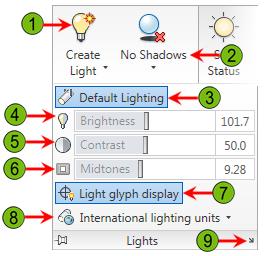
- Create a Point/Spot light: Starts the Light command with the Point or Spot option
- Shadows: Controls whether Full, Ground or No shadows are displayed
- Default Lighting Mode: Turns default lighting on and off. Default lighting must be turned off before you can use lights and the sun when rendering
- Brightness Slider: Controls the brightness of all the lights in the scene by a given factor; typically used with default lighting
- Contrast Slider: Controls the contrast of all the lights in the scene by a given factor; typically used with default lighting
- Midtones Slider: Controls the midtone values for exterior scenes that are lit by the sun. This slider is only available when the LIGHTINGUNITS system variable is set to 1 or 2
- Light Glyph Display: Turns on and off the display of the glyphs in the drawing that represent the location of point lights and spotlights
- Units: Controls whether Generic units, American units (generic) or SI units (photometric) lights are used
- Lights in Model: Displays the Lights in Model palette on which you can select lights in the scene and display their properties on the Properties palette
Sunday, May 23, 2010
Light Panel
Distance Light
Emits 射出 light uniformly in a single direction based on a From and a To vector

Distant lights are good for filling a scene with an even amount of light, like Sun Light
Spot Light
Emits light from a source location to a target based on the shape of a cone

Outer Cone: define when the light starts to fall off
Inner Cone: determines the hot spot of the light
Spot lights are good for emulating 仿效 sources of light such as floodlights and track lighting
Saturday, May 22, 2010
Point Light
Emits light in all directions from its specified location

Point lights are good for emulating sources of light such as light bulbs, lanterns, and candles
Lighting
Lighting is used to set a specific mood in a scene or draw attention to a specific area or detail

Day: warm and bright
Night: warm and inviting
Lighting in a scene must be done with the right balance of lights and shadows
It is best to start with a few lights and adjust their properties to produce the desired look before adding more lights
Lights cast shadows, so to add too many can confuse someone when they are looking at a rendered scene
When default lighting is enabled, there are two distant light sources available for your scenes that emit light onto all visible faces
Default light does not cast shadows, so usually not used when rendering a scene with materials
Export Visual Style
The easiest way to make the style available in another drawing is to export it to a tool palette
Export Visual Style by Visual Style Manager
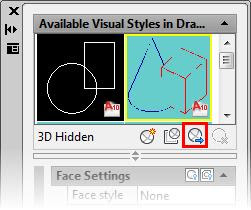
Highlight the desired visual style and click the Export the Selected Visual Style to the Tool Palette button
Drag Export to Tool Palette
The selected visual style has been dragged to the active tool palette
The exported Visual Style becomes completely independent
Friday, May 21, 2010
Visual Style Override
Create temporary visual style overrides:
- Changing a visual style's properties on the Render tab
- Visual Styles and Edge Effects panels
Visual Style Panel
1. Visual Style Manager
2. Visual Style
3. X-Ray Effect
4. Opacity
5. Face Color Mode
6. Face Style
7. Lighting Quality
8. Performance Tuner
Edge Effects Panel
1. Edges
2. Edge Overhang toggle / Edge Overhang slider
3. Edge Jitter toggle / Edge Jitter slider
4. Silhouette Edge toggle / Silhouette Edge Width slider
5. Obscured Edges toggle / Obscured Edges Color pull-down
6. Intersection Edges toggle / Edge Intersection Color pull-down
7. Edge Color
Temporary overrides made here are not saved automatically
Subscribe to:
Posts (Atom)