Wednesday, June 2, 2010

Navigating the Model


Validate and present your designs to others
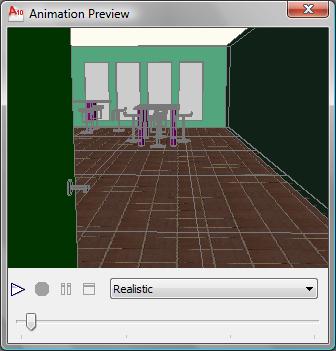
Ability to view the designs from any angle and perspective
Present those designs to others in a way that is easy to understand
Help you to convey 传达 your ideas and uncover 发现 design problems

Render Presets Manager

Render tab > Render panel > Manage Render Presets

Almost identical to the Advanced Render Settings palette

Difference:
Can remove a custom render preset in the Rendered Presets Manager
Create a new preset from an existing one (only available in the drawing in which it is created)

Output Size

Output size: 640 x 480 (320 x 240, 800 x 600, 1024 x 768)

Specify Output Size


Width, Height, and Image Aspect values

Sport File Format

BMP: Windows Bitmap
PCX: PC Paintbrush
TGA: Targa
TIF: Tagged Image File
JPG & JPEG: JPEG File
PNG: Portable Network Graphics

Tuesday, June 1, 2010

Advanced Render Setting

Render a scene and output an image to a file
Render tab> Render panel > Advanced Render Setting

Using the Advanced Render Settings palette, can fine-tune settings that affect the rendering of a scene
There are some elements that the default presets do not take advantage of, such as shadow maps, global illumination, and final gather

Ray tracing
  • affects how light bounces off materials and how reflections and refractions are calculated
  • creates sharper shadows than shadow maps do
Global Illumination and Final Gather options
  • improve the accuracy of how light bounces off objects in a scene
  • Using indirect illumination, enhance a scene by simulating radiosity, which can help to improve the way light fills a room and the way colors bleed off some objects onto others
e.g. the color from the metal cabinet bleeds onto the wall in real life based on how the light hits it

Render Context: Contains settings that affect what is rendered and the final output of the render
Materials: Contains settings that affect how materials are used during rendering
Sampling: Contains settings that affect how sampling is handled for rendering
Shadows: Contains settings that affect how shadows are calculated and appear in a rendering
Ray Tracing: Contains settings that affect the shading of objects in a rendering
Global Illumination: Contains settings that affect how a scene is illuminated
Final Gather: Contains settings that affect how Global Illumination (GI) is calculated
Light Properties: Contains settings that affect how indirect illumination is calculated
Visual: Contains settings that control how some of the visual aids are displayed to help explain how some of the features of the renderer behave
Processing: Contains settings that can affect the time in which the rendering is completed

Image Information


Using the image information, can compare the render settings of two entries in the History pane

Render History


Saved: a folder icon and a user-specified name and file type
Temporary: a clock and green arrow icon, meaning that the file has not been given a proper name and file type
Deleted Output: a red X, meaning that the output files associated with the entry have been deleted

Right-click an entry in the History pane:

Save: Saves the selected entry to a file, and the icon for the entry is updated to a file folder with a red check mark
Remove From the List: Removes the entry from the History pane but does not delete the saved output
Delete Output File: Deletes the output file and leaves the entry in the History pane