Showing posts with label Visualization 468. Show all posts

Saturday, June 5, 2010

Create a Recorded Walk

1. Exercise thumbnail > Play > New Shot

2. New View / Shot Properties dialog box:
  • View name: enter walk to kitchen
  • View category: select Exercise
  • View type: select Recorded Walk
  • Transition type: select Cut to shot
  • Click Start Recording

3. Use the Walk controls to create a short recording:
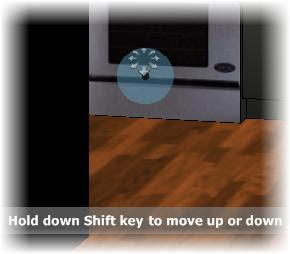
  • Move the cursor over the door of the stove before you click
  • Hold the mouse button down. Move the cursor further from the control point, will faster the movement
  • Release the mouse button to stop recording
  • Click Preview to review the recorded walk
  • If necessary, repeat steps 2 and 3 to rerecord the Walk
  • Click OK
4. Review your cinematic shot sequence
Status bar > Show Motion
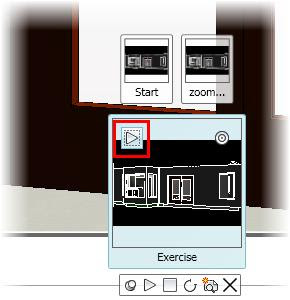
Exercise thumbnail > Play

Create a Cinematic Shot

1. On the ShowMotion controls
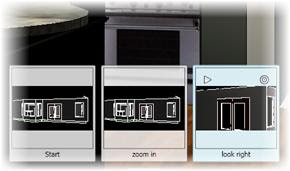
  • Move your cursor over the Exercise category, Start shot
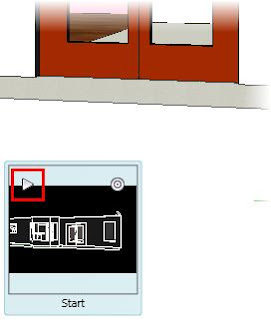
  • Click Play
  • Click New Shot

2. In the New View / Shot Properties dialog box
  • View name: enter zoom in
  • View category: select Exercise
  • View type: select Cinematic
  • Transition type: select Cut to shot
  • Movement type: select Zoom In
  • Duration: adjust the value to 4 seconds
  • Distance: adjust the value to 650
  • Motion: select Starting Point
  • Click Preview. The preview should appear to fly through the door and look back at it
  • from the inside out
  • Click OK
3. Exercise category thumbnail > Play

4. Show Motion toolbar > New Shot. New View / Shot Properties dialog box
View name: enter look right
View category: select Exercise
View type: select Cinematic
Transition type: select Cut to shot
Movement type: select Look
Duration: adjust the value to 6 seconds
Select Degrees right and set the value to 90
Motion: select Starting Point
Preview > The camera should turn to the right and point at the stove
Click OK

5. Exercise category thumbnail > Play

Ceate a New Shot

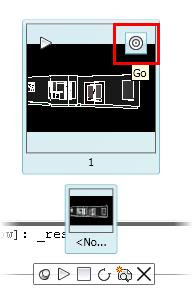
1. Move your mouse over the thumbnail labeled none, then the thumbnail labeled 1. Click Go

2. ShowMotion controls > New Shot

3.

Name: Start
View Category: Exercise
View type: select Still
Transition type: select Fade from black into this shot
Transition duration: 2
Duration: 3 seconds

4. Move the mouse over the thumbnails labeled Exercise, Start. Click Play